One of the new things I want to introduce to my blog is something I used to do years ago on another site: Coding Challenges, now with a new twist! In these posts, I’ll be undergoing a challenge to code something in a hundred lines or less whilst also walking you through my process of doing so and of course releasing the code to you at the end.
My aim for these challenges is to show how interesting coding can be to everyone reading these and hopefully inspire people to take it up themselves, as well as having a fun activity for myself to break up any mundanity I might be experiencing.
So my first challenge for this is Pong. The first ever computer game to be made had to be the first challenge for me to do also, so let’s get started!
The Setup
For Pong, there are a few things to consider:
- The ball bouncing around
- The paddles for both you and the computer
- The points score
If I can get all three of these components into my game, then to me I will have succeeded at creating Pong.
Today I’ll be coding in Python 3.10. I wanted to start off easy so I’m coding in my favourite of all the coding languages. Using the easy to obtain PyGame module makes the process of getting a game up and running very simple. Importing the module itself uses our first line!
The Background
First things first, I need to create the background. Using PyGame’s display functions I was able to create a window for the game as well as draw a few background pieces in just three more lines!

It’s simple looking for now, but hopefully the next part will make it a bit more lively.
The Ball
The ball is perhaps the most important part of Pong. It has three main characteristics: it’s movement, it’s ability to bounce off of walls, and it’s ability to bounce off of the paddles. I think the best method of creating something like this is to use a class object. Which means I need to explain what one of those is!
Python Lesson: Classes
In Python, a class is a way of defining an object. When you create a class you need to define what different characteristics any objects will have such as position, velocity, or a name! These parts can be put in the __init__ function that needs to be defined first inside the class. I’ve put an example of what this would look like below:
class ball:
    def __init__(self, x, y):
        self.x, self.y = x, y
Once this class has been created, it can be called at any time to create an object. In my Pong game I want to create a ball so I’ll call the class and input my values for where I want the ball to go as follows:
Ball = ball(100, 50)
This will create a ball placed at 100, 50 for me to do whatever I like with. I can change the x position or y position at any point by using the following line:
Ball.x = Ball.x + 1
The actual class I’ll use for my code will be a bit more complicated than that as you’ll see in the final product, but for now I think this works as a good introduction to classes in Python! On with the challenge.
The Bounce
Once I’ve given the ball a position and a velocity, I can next code in the balls ability to bounce. I’ll have the bounces be perfectly elastic (never losing energy) for simplicity and all I will code is for the ball to reverse it’s direction when it collides with a wall. This results in the following:
if y+5 >= 400:
    vy = -abs(vy)
elif y-5 <= 0:
    vy = abs(vy)
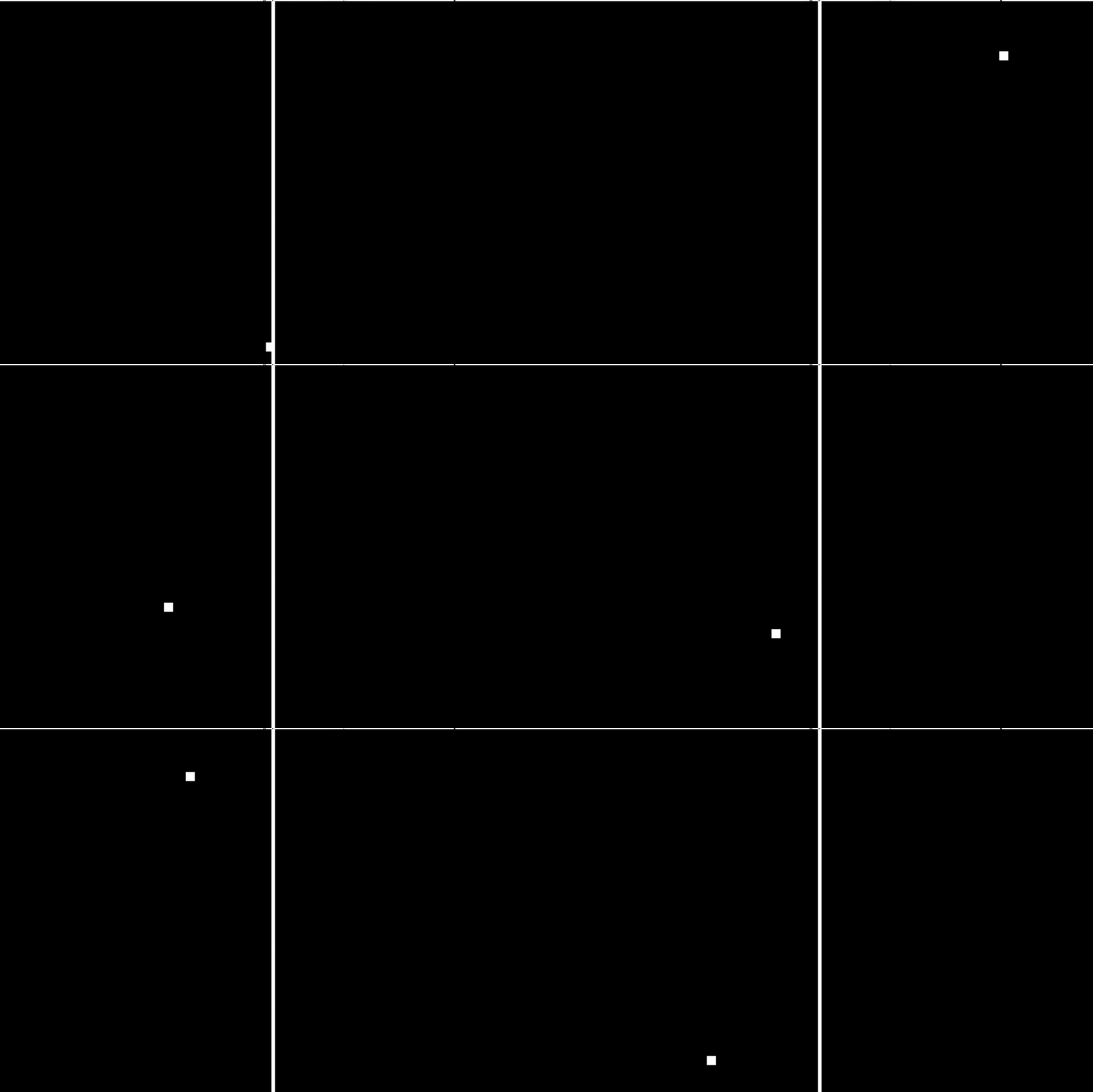
It’s a little bit glitchy, which I think is mostly from my recording software. Additionally I added in a little bit of code to reset the ball back to the centre if it goes out of bounds on the sides. Later I’ll code this into counting the points but for now I just don’t want the ball to leave.
All in all, everything for the ball including the wall collisions takes up a further 27 lines.
The Paddles
The paddles in Pong represent the players input into the game. Using the controls the player can move the paddle up and down such that if the ball collides with them the ball bounces back. But should the paddle be in the wrong place the ball will pass by letting a point be scored. I’ll start off by creating another class, this time for the paddles!
First things first let’s deal with the player. PyGame has some built in functions to deal with keyboard inputs, by finding the key associated with up and down, I can code it so that the paddle will increase it’s y position accordingly.
for event in pygame.event.get():
    if event.type == 768:
        if event.key == 1073741906:
            Paddle_L.y -= 1
        if event.key == 1073741905:
            Paddle_L.y += 1
In the code above, 768 refers to the event of a key being pressed, whilst the other numbers refer to that key being up and down respectively.
Next up I need to add a few lines of code that allow the ball to know if it collides with the paddle. I can input the paddles position and then repeat the direction swapping from earlier. This gives us the fully functional paddles as seen below:
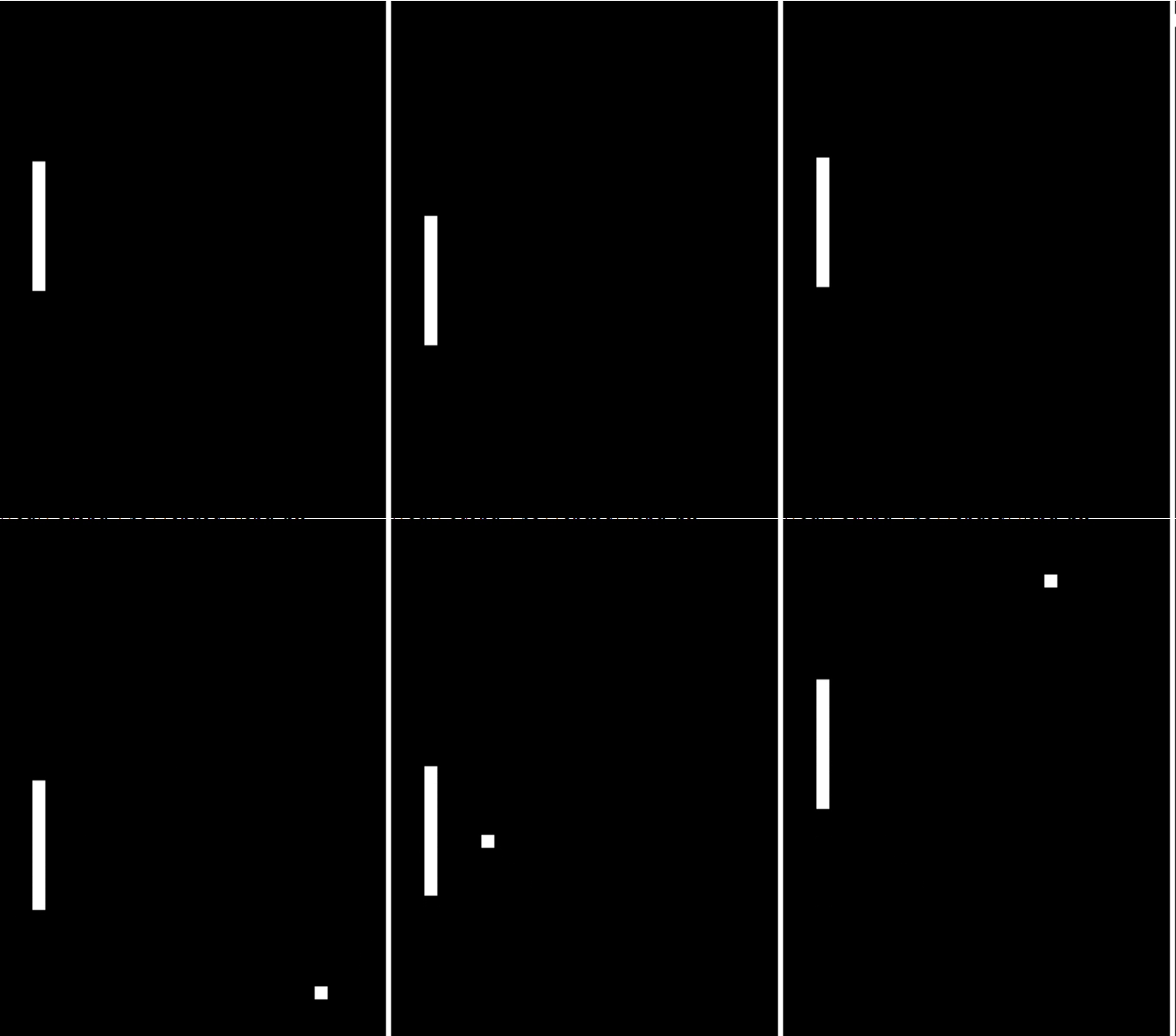
For the computers paddle, I’ll have it move depending on the position of the ball so it will have very constant movement.
All in all, adding in the paddles results in another 41 lines of code, totalling 71 lines used so far.
The Score
As mentioned earlier, once the ball goes off the side a point needs to be counted for the opposite side. Having this point score be added is easy enough, if it goes off the left, give a point to the right and vice versa.
The interesting part is in how I display that score. In the original game the score is counted by some large numbers on either side. Whilst this is doable, I only have around 20 lines left, so I need a more compact way of doing this.
Eventually, I decided on the score being counted by some other balls in the corners, the balls in the top left are the lefts score and the top right is for the right. This can be added to repeatedly using a little for loop:
for i in range(2):
    score = Score[i]
    if i == 0:
        for j in range(score):
            pygame.draw.circle(...)
    if i == 1:
        for j in range(score):
            pygame.draw.circle(...)
With that, I think the games all ready. Adding the score in total was 22 lines meaning I’ve made it under the bracket by just 7 lines. With the challenge complete, here’s my final visualisation of my game of Pong:
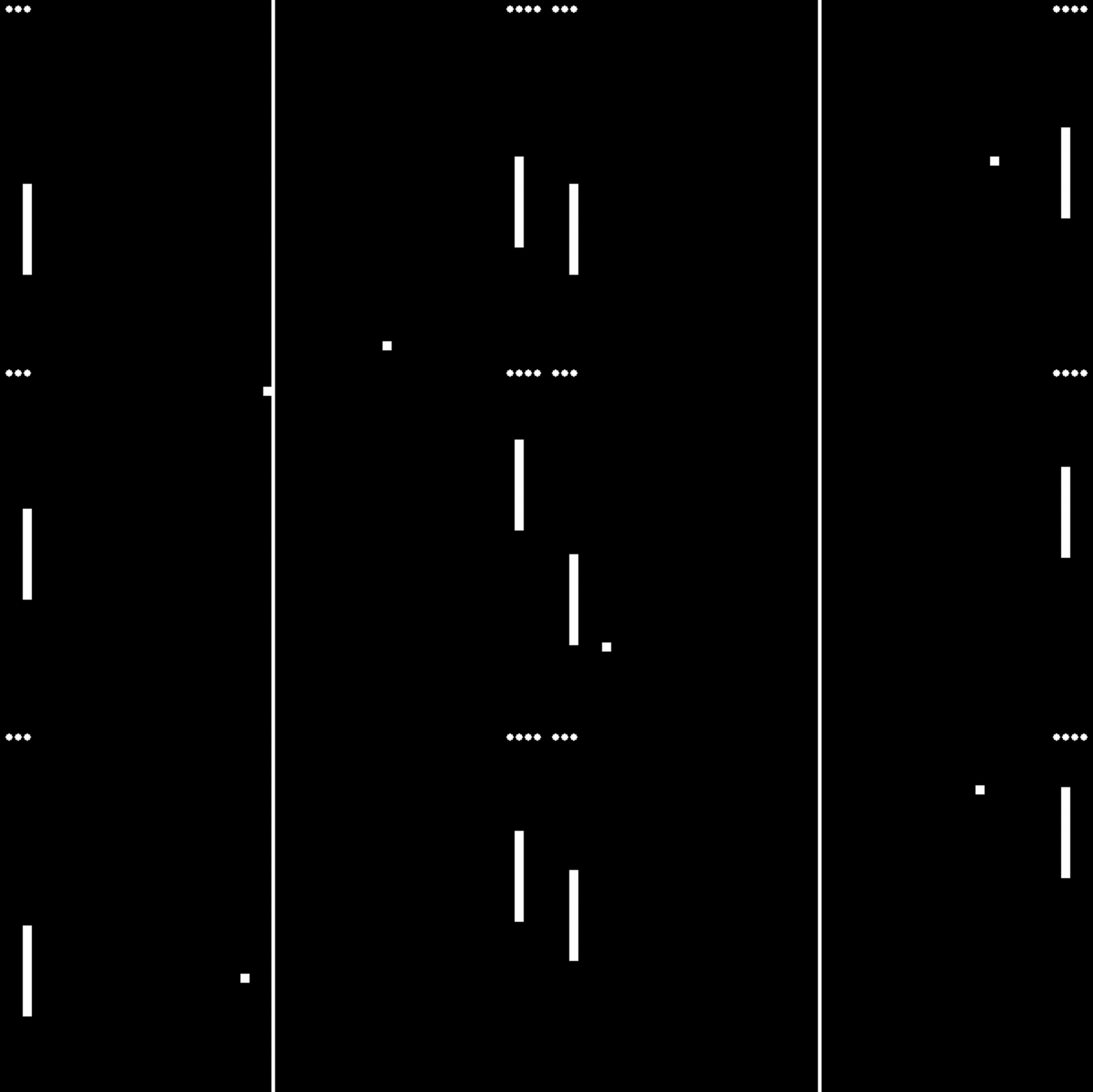
The GIFs don’t do it justice, I think I did a really good job of recreating the game faithfully. If you fancy playing it yourself I’ll leave the code to download below. Run it in your favourite python editor and enjoy my game!
import pygame
screen = pygame.display.set_mode((600, 400), pygame.NOFRAME)
class ball:
    def __init__(self, x, y, vx, vy):
        self.x, self.y, self.vx, self.vy = x, y, vx, vy
    def draw(self):
        x, y = self.x, self.y
        pygame.draw.rect(screen, (255, 255, 255), (x-5, y-5, 10, 10), 0)
    def update_pos(self):
        x, y, vx, vy = self.x, self.y, self.vx, self.vy
        x = x + vx
        y = y + vy
        self.x, self.y = x, y
    def wall_check(self):
        x, y, vx, vy = self.x, self.y, self.vx, self.vy
        if y+5 >= 400:
            vy = -abs(vy)
        elif y-5 <= 0:
            vy = abs(vy)
        if x+5 >= 600:
            return "R"
        elif x-5 <= 0:
            return "L"
        self.vx, self.vy = vx, vy
    def paddle_check(self, Paddle):
        x, y, vx = self.x, self.y, self.vx
        px, py = Paddle.x, Paddle.y
        if x-px <= 10 and px-x <= 10 and y-py <= 50 and py-y <= 50:
            vx = -vx
        self.vx = vx
        self.update_pos()
class paddle:
    def __init__(self, x, y):
        self.x, self.y = x, y
    def draw(self):
        x, y = self.x, self.y
        pygame.draw.rect(screen, (255, 255, 255), (x-5, y-50, 10, 100), 0)
    def wall_check(self):
        y = self.y
        if y < 50:
            y += 1
        elif y > 350:
            y -= 1
        self.y = y
Ball_1 = ball(300, 300, 0.02, 0.02)
Balls = [Ball_1]
Paddle_L = paddle(30, 350)
Paddle_R = paddle(570, 150)
Paddles = [Paddle_L, Paddle_R]
Score = [0, 0]
while True:
    screen.fill((0, 0, 0))
    pygame.key.set_repeat(1)
    pygame.draw.rect(screen, (255, 255, 255), (298, 0, 4, 400), 0)
    for Ball in Balls:
        Ball.draw()
        Ball.update_pos()
        Out = Ball.wall_check()
        if Out == "R":
            Score[0] += 1
            Ball.x = 300
            print(Score)
        elif Out == "L":
            Score[1] += 1
            Ball.x = 300
            print(Score)
        for Paddle in Paddles:
            Ball.paddle_check(Paddle)
            Paddle.draw()
            Paddle.wall_check()
    if Ball_1.y > Paddle_R.y-50 and Ball_1.vy > 0 and Ball_1.x > 150:
        Paddle_R.y += abs(Ball_1.vy)
    elif Ball_1.y < Paddle_R.y+50 and Ball_1.vy < 0 and Ball_1.x > 150:
        Paddle_R.y -= abs(Ball_1.vy)
    if Ball_1.y > Paddle_L.y-50 and Ball_1.vy > 0 and Ball_1.x < 450:
        Paddle_L.y += abs(Ball_1.vy)
    elif Ball_1.y < Paddle_L.y+50 and Ball_1.vy < 0 and Ball_1.x < 450:
        Paddle_L.y -= abs(Ball_1.vy)
    for event in pygame.event.get():
        if event.type == 768:
            if event.key == 1073741906:
                Paddle_L.y -= 1
            if event.key == 1073741905:
                Paddle_L.y += 1
    for i in range(2):
        score = Score[i]
        if i == 0:
            for j in range(score):
                pygame.draw.circle(screen, (255, 255, 255), ((j-29*int(j/29))*10+10, 10+10*int(j/29)), 4, 0)
        if i == 1:
            for j in range(score):
                pygame.draw.circle(screen, (255, 255, 255), (600-(j-29*int(j/29))*10-10, 10+10*int(j/29)), 4, 0)
    pygame.display.flip()
I hope you enjoyed following my process of writing this code, I really enjoy doing little coding challenges so I’m hoping to continue this type of post in the future. Let me know if you have any advice on how to write posts like this, or even better if you have ways of me improving what code I’ve got. The smaller I can make it the better!
Thanks for reading, and happy coding!
Cassie


Leave a comment